The shift from Windows 7 to Windows 10 brought a lot of new workflow tools, and that trend appears to be continuing. If you’ve recently upgraded to Windows 11 or are still trying to get used to it, you’re not alone. We talk to lots of small business employees who are navigating the shift from Windows 10 to Windows 11and wondering what’s changed, what’s new, and what’s actually useful.
The good news is that Windows 11 didn’t just get a visual makeover; it introduced some really helpful workflow tools designed to make your day more efficient and less frustrating. In this post, I’m going to walk you through a few of my favorites, starting with Task View, and show you how to use them to simplify multitasking, reduce errors, and stay focused, especially if you’re juggling a variety of projects or switching between roles during the day.
Task View: Your New Favorite Multitasking Tool
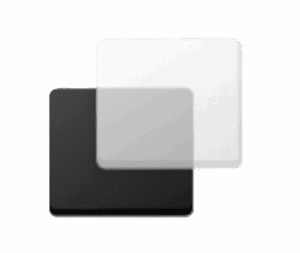 Let’s start with the update to Task View, which I feel is one of the most underrated tools in Windows 11. If you haven’t used it before, it’s that small icon on your taskbar that looks like overlapping boxes. Click it, and suddenly all your open windows are displayed clearly. But the real magic of Task View is virtual desktops.
Virtual desktops let you create separate workspaces for different tasks or roles. For example:
- One desktop for client proposals
- One for internal communications and scheduling
- One for research or ongoing projects
By separating your work into distinct spaces, you can reduce mental clutter and switch between roles without closing windows or losing your place.
How to use it:
- Click the Task View icon or press Windows + Tab
- Click New Desktop to create another workspace
- To rename the workspace:
- Right-click the desktop label (e.g., “Desktop 1”)
- Make the name “Marketing,” “Finance,” or whatever is right for you
- To switch between desktops, use Windows + Ctrl + Left/Right Arrow
If you want to move a window from one desktop to another, right-click it in Task View, hover over Move to, and select the destination desktop. I cannot tell you how helpful this has been in keeping me organized and focused as I switch roles throughout the day. I can tell you from experience that for small-business users managing multiple clients, teams, or tools, this is a game-changer.
Tabbed File Explorer: Less Clutter, More Control
The tabbed file explorer is one of my favorite updates in Windows 11. Now, instead of opening five different windows to manage documents, reports, and downloads, you can keep everything in one File Explorer window and just open new tabs, the same way it works in your browser.
To open a new tab:
- Press Ctrl + T inside File Explorer
- Or right-click a folder and choose Open in new tab
- Drag and drop files between tabs just like between windows
If your team shares network folders or manages a lot of client files, like we do, you will be amazed at how efficient it is to work in a single window of tabs instead of 5 or 10 or 20. This feature didn’t come out until version 22H2, so if you’ve been using Windows 11 for a while, you might have initially missed the feature and need to enable it.
Snap Layouts: Smarter Window Management
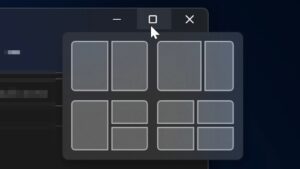
Like me, you probably already drag windows to poisition them side-by-side, but Snap Layouts in Windows 11 take this to the next level. When you hover over the maximize button on any window, you’ll see layout options for organizing your screen, such as stacking, quarters, or columns. And the great thing is that once you set up a layout, Snap Groups remember which apps go where, so if you minimize everything or switch tasks, you can bring your exact layout back with a click.
For example:
Your operations manager might keep QuickBooks, Excel, and a browser open in one layout. Snap Groups lets them pull that layout back up without re-opening or rearranging anything. Not having to go back and fix your windows after things get moved around is such a time saver.
Try it by pressing Windows + Z and choosing a layout.
Clipboard History: One Copy-Paste Isn’t Enough
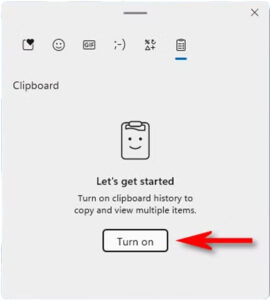 Here’s a small feature that saves me a ton of time: Clipboard History. If, like me, you find yourself copying and pasting multiple items throughout the day, such as addresses, web addresses, or invoice numbers, you are going to love this tool. Instead of only storing your last copied item, Windows 11 keeps a history of everything you’ve copied. The only downside is that you have to be careful about what you copy; for example, you don’t want user names and passwords, ePHI, PII, or other sensitive data sitting in the clipboard all day. Because of these potential security issues, this feature is not enabled by default, and I wouldn’t recommend using it in organizations that regularly handle sensitive information.
If it is safe to use in your environment, press Windows + V to open the clipboard history, and click Enable. From there, you can see recent items, delete everything, delete specific things, mark favorites, and pin the items you use most often.
Focus Sessions: Stay on Track
Studies show that every time you get distracted, it takes 10-15 minutes to get back to where you were. If daily distractions are a challenge for you, Focus Sessions can help. Found in the Clock app, this feature lets you block off time to concentrate on one thing, while still building in breaks and tracking progress.
For any business that works with time-sensitive tasks, this is a great feature; we use it for time-boxing tasks like invoicing, client follow-ups, and documentation. It integrates with your calendar and works well with built-in widgets to create to-do lists, monitor weather, and provide business headlines. And if you want more information about what you can do with this productivity tool, Microsoft has an excellent resource here.
Workflow Tools Increase Productivity
Microsoft should really do a better job of getting information out there about many of its workflow tools. When your team can organize tasks across desktops, reduce the number of windows, automate layouts, and quickly find what they copied, everything in your business runs more efficiently. These tools won’t just make your day easier; they’ll cut down on lost time, repetitive tasks, and the risk of avoidable mistakes.
If you want help exploring these features or need support migrating your team to Windows 11, we here at Clark Computer Services would love to help. Give us a call at 301‑456‑6931 or email [email protected]. As your technology partner, we’ll make sure your tools work as hard as you do.